In an era where documents and ebooks travel with us, a reliable PDF viewer and book reader is essential. This guide covers the app’s core features, supported formats, customization and accessibility options, annotation and study tools, library management, synchronization and backup strategies, and practical tips for troubleshooting. You’ll also find an organized table of contents with deep links to each section and a set of FAQs addressing common user concerns.
Section overview: Below is a compact directory you can use to jump to major topic areas.
1. Key Features — A snapshot of the app’s primary capabilities and user benefits.
2. Supported Formats & Compatibility — Which file types and platforms the app supports and why that matters.
3. Reading Experience & Customization — Display, typography, night modes, and layout controls to optimize reading.
4. Annotation, Highlights & Notes — Tools for study, review, and collaboration.
5. Library Organization & File Management — Best practices for organizing large document collections.
6. Synchronization, Cloud & Backup — How to keep your library and annotations safe and consistent across devices.
7. Troubleshooting & Advanced Tips — Performance tuning, permission settings, and common fixes.
Below you’ll find expanded coverage for each topic, followed by FAQs tailored to the PDF Viewer & Book Reader app.
1. Key Features
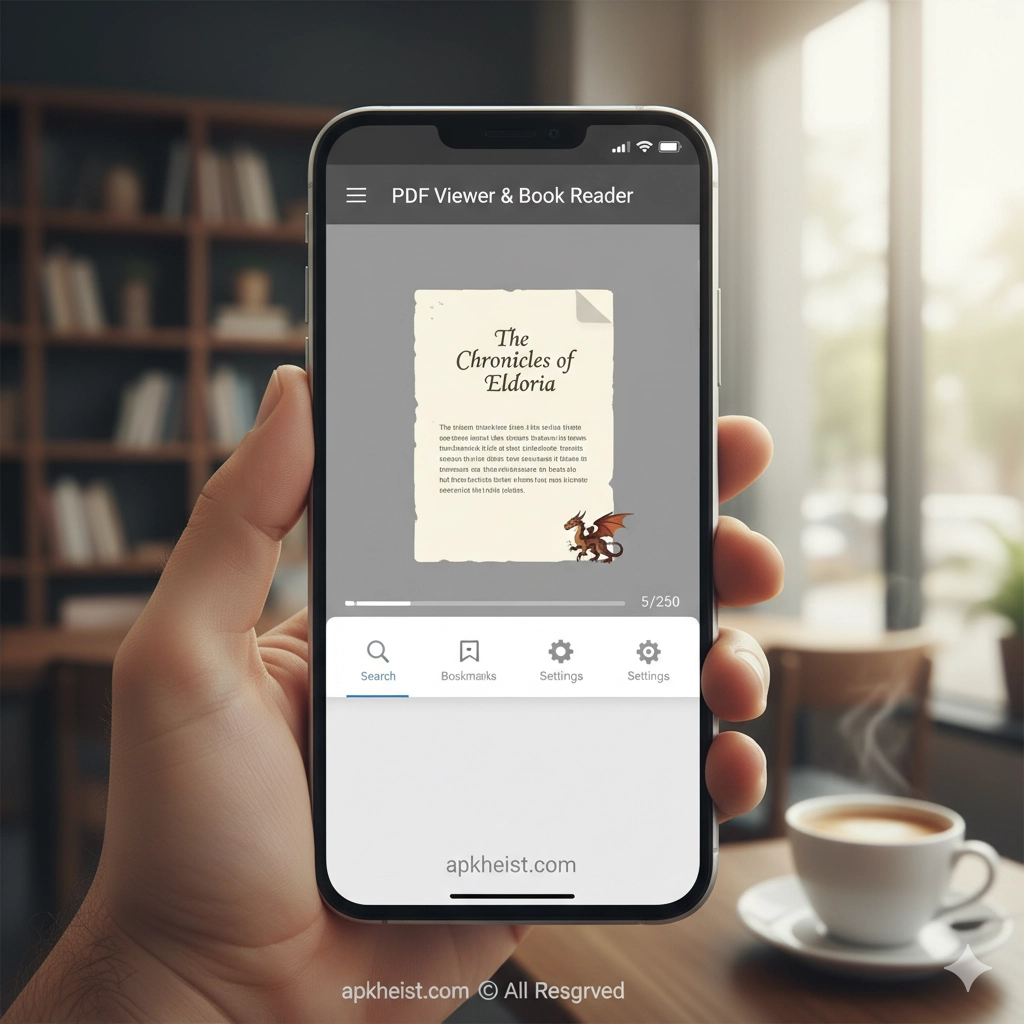
The PDF Viewer & Book Reader app provides a unified environment for reading PDFs, EPUBs, and other popular ebook formats with high stability and predictable performance. Core features include rapid file rendering, smooth page transitions, multiple viewing modes (single page, continuous scroll, two-page spread), and a robust search capability that indexes both embedded text and OCR results when available. The app integrates annotation tools (highlight, underline, freehand), bookmarking, and an intuitive file import workflow from local storage, cloud providers, and networked drives. For users who work with large technical documents, the app’s thumbnail navigator and search-by-bookmark features significantly reduce time spent locating specific passages.
Practical advantage: professionals and students save time during review tasks because the viewer retains reading position and last-used annotation filters between sessions. For users seeking browser-level experimentation, consider exploring cutting-edge browser builds like Firefox Nightly App: The Cutting-Edge when testing web-based PDF integrations.
2. Supported Formats & Compatibility
Modern readers require multi-format support. The app natively reads PDF, EPUB, EPUB3, MOBI, CBZ/CBR (comic archives), and plain text files. For PDFs with embedded fonts, the reader preserves original typography and layout; for scanned documents, it provides optional OCR layers to enable text search. Platform compatibility extends across Android and iOS with feature parity where possible; desktop builds (Windows/macOS/Linux) offer advanced printing and batch-processing tools. Integration points include Open In / Share sheet on mobile and drag-and-drop on desktop, plus optional network mounts for SMB/FTP/HTTP-sourced content. If you use multi-display or remote display workflows, investigate external display tools such as Is the Spacedesk App the Ultimate Multi to extend reading or presentation surfaces.
3. Reading Experience & Customization
Reading comfort is configurable. The app offers adjustable font scaling, line height, margin controls, and font substitution for EPUB files; reflow options for PDFs can convert fixed-layout pages into a continuous, readable flow on small screens. Display modes include automatic night mode (based on local sunset times), manual color inversion, and a “paper-like” theme that reduces glare. For users with dyslexia or other accessibility needs, text-to-speech and letter spacing adjustments are available, as is support for external screen readers and system-level accessibility APIs. The app also preserves reader settings per-book—so your preferred font size for technical manuals won’t overwrite your setting for novels. For creative integrations and fun customization, you might enjoy testing media or design apps like Share Cool Emoji Arts Designs App when preparing annotated visual notes.

4. Annotation, Highlights & Notes
Annotation is a primary differentiator. The reader supports a full palette of annotation types: inline highlights with color labels, underlines, strikethroughs, margin comments, freehand drawing, stamps, and audio notes attached to pages. Annotations are stored both locally and (optionally) in the cloud with versioning to prevent accidental loss. Export options include flattened annotations to produce a shareable PDF, and export-to-CSV or JSON for review workflows that require metadata (page number, highlight text, color tag, timestamp). Collaboration features allow selective sharing of annotated ranges via shareable links or by exporting a review package. Writers or editors who want fast rhyming or writing assistance while annotating may pair the reader with tools like Rhymit App — The Writer’s Fast Rhyming Companion during creative sessions.
5. Library Organization & File Management
Effective management makes large ebook collections useful. The app provides metadata editing (title, author, series, tags), bulk-tagging, smart collections (saved queries), and automated folder watches to import newly added files from designated directories. Full-text indexing enables instant global searches across the library. For comic or magazine users, automatic series grouping and cover-scrape options maintain visual organization. Integration with external tools and services enables direct import of downloaded assets from apps or game-related content aggregators—if your workflow intersects with entertainment sources, you may find links such as B.o.T Game — Tactical Odyssey in a Broken World and editorial feeds helpful for sample content management.
6. Synchronization, Cloud & Backup
To protect reading progress and annotations, the app supports encrypted synchronization across devices using major cloud providers (Google Drive, OneDrive, Dropbox) and proprietary cloud backends. Synchronization conflicts are resolved via a version history interface allowing users to compare annotation states and roll back if necessary. Local backup options include scheduled exports to a user-specified folder or a compressed archive format for off-site storage. For users who present documents or use split-screen setups, lightweight companion apps that facilitate secondary display usage—such as entertainment or remote-control utilities—can complement the reader; for example, lightweight games or quick-reference apps like Sugar Rush — A Quick Adventure Game may help during breaks between reading sessions.
7. Troubleshooting & Advanced Tips
Common issues and solutions: if rendering is slow with large PDFs, enable “fast rendering” mode (rasterization cache) and disable continuous thumbnails; if search fails on scanned documents, apply the built-in OCR engine and re-index the file. Permission errors on mobile commonly stem from restrictive storage access settings—grant the app full file access or use the system file picker for import. For best battery performance, limit background sync frequency and disable unnecessary animations. Advanced users can enable developer options to export raw annotation logs for debugging. If you integrate game or media content into your reading breaks or presentation materials, curated resources like Gun Strike Game — The Complete Player’s Guide or other editorial assets can be used outside the reader for promotional or supplementary purposes.
Column intro: The sections above are intended to give you a fast path to the capabilities and operational choices that matter most. Use the in-page links to jump to areas you care about, and consult the FAQ below for practical, immediate answers.
Frequently Asked Questions
Q1: How do I import PDF and EPUB files into the app?
A1: Use the system file picker or drag-and-drop on desktop. You may also enable folder-watch to automatically import files placed in a designated directory. For cloud imports, connect your cloud account under Settings and authorize the app.
Q2: Can I sync my reading progress and annotations between multiple devices?
A2: Yes. Enable synchronization in Settings and connect to a cloud provider. The app stores both reading position and annotation states and includes conflict resolution with version history.
Q3: How accurate is the OCR on scanned documents?
A3: OCR accuracy depends on source image quality and language support. The app’s OCR is suitable for common Latin-based scripts; if processing fails, try improving scan quality (300 DPI or higher) or use an external OCR tool, then re-import the searchable PDF.
Q4: Are annotations exportable to share with colleagues?
A4: Yes. You can export annotations as a flattened PDF for universal sharing, or as a structured CSV/JSON file for review workflows that require metadata export.
Q5: What formats are best for comic books and magazines?
A5: CBZ/CBR archives and high-quality PDFs work best. The app supports two-page spreads and image preloading to ensure smooth navigation for graphic content. For series management, automated cover scraping and metadata editing are available.
Q6: How can I improve app performance on older devices?
A6: Reduce the cache size, disable continuous indexing, enable low-memory rendering modes, and limit background sync. Clearing thumbnail caches periodically also helps.
Q7: Where can I find additional resources or sample content to test the app?
A7: For sample documents and editorial testing, refer to curated app and article collections. Supplementary reading or reference materials are available from third-party sources such as Epic Heroes War Game: The Complete Guide, Soul Knight Game: The Ultimate Guide, and other thematic feeds if you need example content for layout and rendering tests.