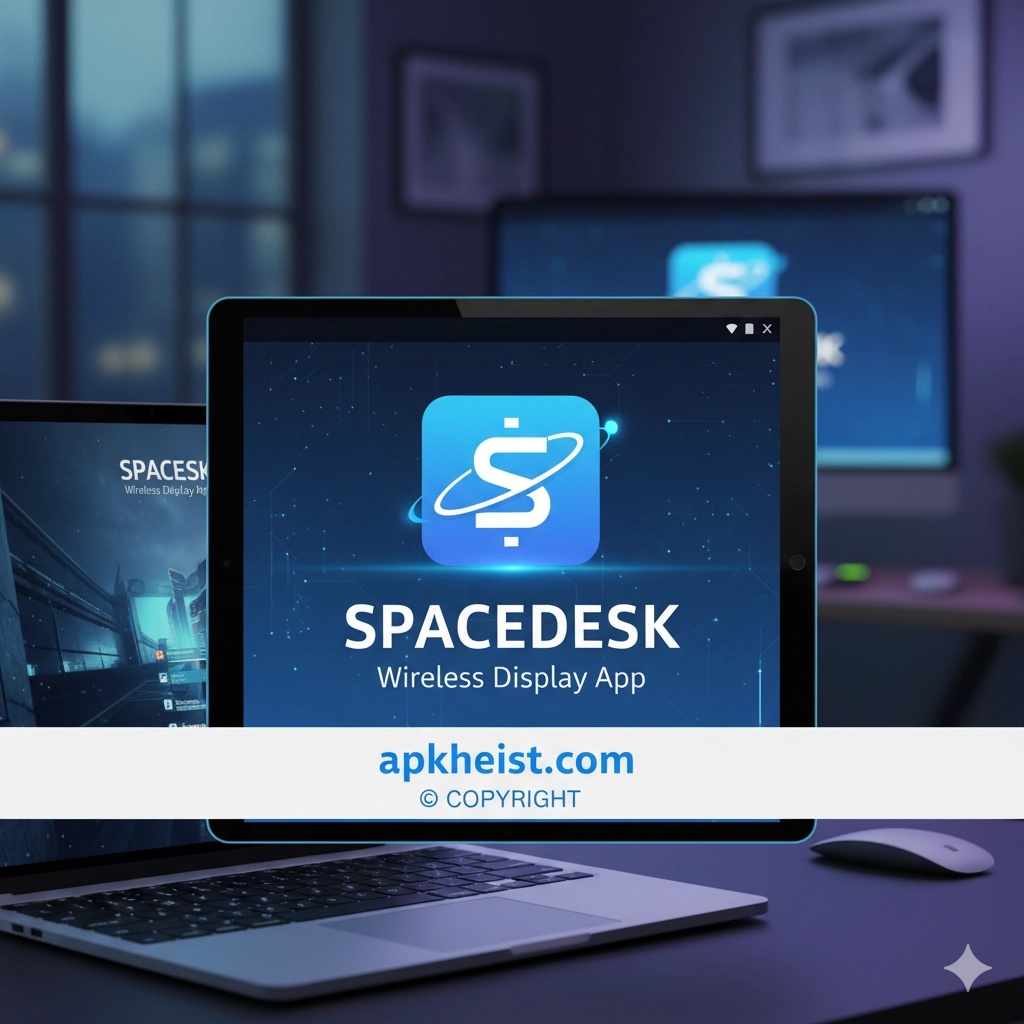
The spacedesk app provides a highly flexible and cost-efficient solution for multi-monitor setups. It supports Windows primary systems and a wide range of client devices, enabling users to mirror, extend, or duplicate displays wirelessly. Whether you are a creative professional, office worker, gamer, or remote learner, spacedesk enables an enhanced workspace without requiring additional physical monitors.
Into the Dead: The Ultimate Runner
Pocket Necro Game: The Ultimate Dark Sum
Battle Bay Game — Definitive Tactical
Directory
A simple overview of its functionality and wireless connection process.
2. Key Features of spacedesk App
A description of spacedesk’s most useful capabilities for different user groups.
3. Setup Requirements and Compatibility
An explanation of supported devices, OS versions, and network needs.
Examples of how professionals and everyday users leverage spacedesk.
5. Troubleshooting spacedesk Issues
A guide to solving frequent connectivity or performance problems.
1. How spacedesk Works
The spacedesk app operates by converting secondary devices such as tablets, smartphones, and additional computers into extra displays using a network connection. The Windows machine acts as the primary video source, running the spacedesk DRIVER software. Meanwhile, the client device runs the spacedesk VIEWER app, which receives streamed display data over a local Wi-Fi or wired network. This architecture allows users to extend or mirror displays in real time. The process relies heavily on network stability, and high-bandwidth routers typically ensure smooth video streaming with minimal latency. Once configured, users can drag windows, run applications, or manage multimedia elements just like using a real monitor.
2. Key Features of spacedesk App
The spacedesk app offers a wide array of features that enhance productivity and multitasking. It supports extended display mode, enabling users to distribute windows across multiple screens for improved workflow. Mirroring is available for presentations or remote sharing scenarios. Touchscreen interaction is supported on many devices, providing interactive control on tablets and touch laptops. Another important feature is high-resolution support; spacedesk can adapt to various screen sizes and aspect ratios, making it suitable for both casual work and advanced creative tasks. Additionally, it supports multi-client setups, meaning several external screens can connect to the same Windows computer. This transforms a single workstation into a multi-display command center.
3. Setup Requirements and Compatibility
To run spacedesk effectively, a user must have a Windows PC (Windows 8.1 or later) capable of running the spacedesk DRIVER. The client devices may include Android phones, iPads, iPhones, Chromebooks, Windows laptops, or even Linux setups with a browser viewer. A stable local network is crucial; while spacedesk can run on Wi-Fi, Ethernet provides the most consistent results. Some firewall or antivirus configurations may need adjustment to allow local streaming. Users should ensure their graphics drivers and Windows updates are current to avoid compatibility issues. Once the appropriate apps are installed, pairing devices typically takes only a few seconds.
4. Common spacedesk Use Cases
Spacedesk is used across various environments. Professionals in finance, software development, and design often depend on multi-monitor setups for monitoring dashboards, editing media, or coding. Students use spacedesk to keep reference materials open on separate screens. Remote workers benefit from organizing communication apps like email and video conferencing on additional displays. Gamers sometimes use spacedesk to monitor chats, stream controls, or performance data. Even casual users enjoy extending smartphone interfaces to larger screens or using tablets as sleek secondary monitors. The flexibility and low cost compared with buying extra hardware make spacedesk appealing to a wide audience.
5. Troubleshooting spacedesk Issues
When issues arise, they typically relate to network instability, outdated drivers, or incompatible firewall configurations. If users encounter lag or disconnection, switching to a 5 GHz Wi-Fi network or Ethernet cable often resolves the problem. Confirming that the spacedesk DRIVER and VIEWER versions match is also important. Some systems may block local streaming through aggressive antivirus rules, requiring manual exceptions. Users should check Windows display settings to ensure extended mode is properly enabled. When performance problems persist, restarting the router or checking for interference from bandwidth-heavy applications can help restore smooth operation. Given proper setup, spacedesk usually performs reliably.

FAQ
1. What is the spacedesk app used for?
The spacedesk app allows users to convert mobile devices or secondary computers into additional monitors through wireless or wired network streaming. It enhances productivity by providing more screen space.
2. Is spacedesk safe to use?
Yes, spacedesk is considered safe. It uses local network communication and does not transmit data over public servers. Users should, however, ensure they download it from official sources.
3. Does spacedesk work on iOS and Android?
Yes. spacedesk offers viewer apps for iOS, Android, Windows, and browser-based environments, making it compatible with nearly all modern devices.
4. Why is spacedesk lagging?
Lag is usually caused by network limitations. Switching to 5 GHz Wi-Fi or Ethernet typically improves performance drastically. Closing bandwidth-heavy apps may also help.
5. Can spacedesk support multiple monitors?
Yes. spacedesk supports multiple client connections simultaneously, allowing users to build multi-monitor environments without purchasing physical displays.
This article provides an in-depth introduction to spacedesk app functionality, covering features, troubleshooting, setup, and common use cases to help users make full use of this powerful display-extension tool.