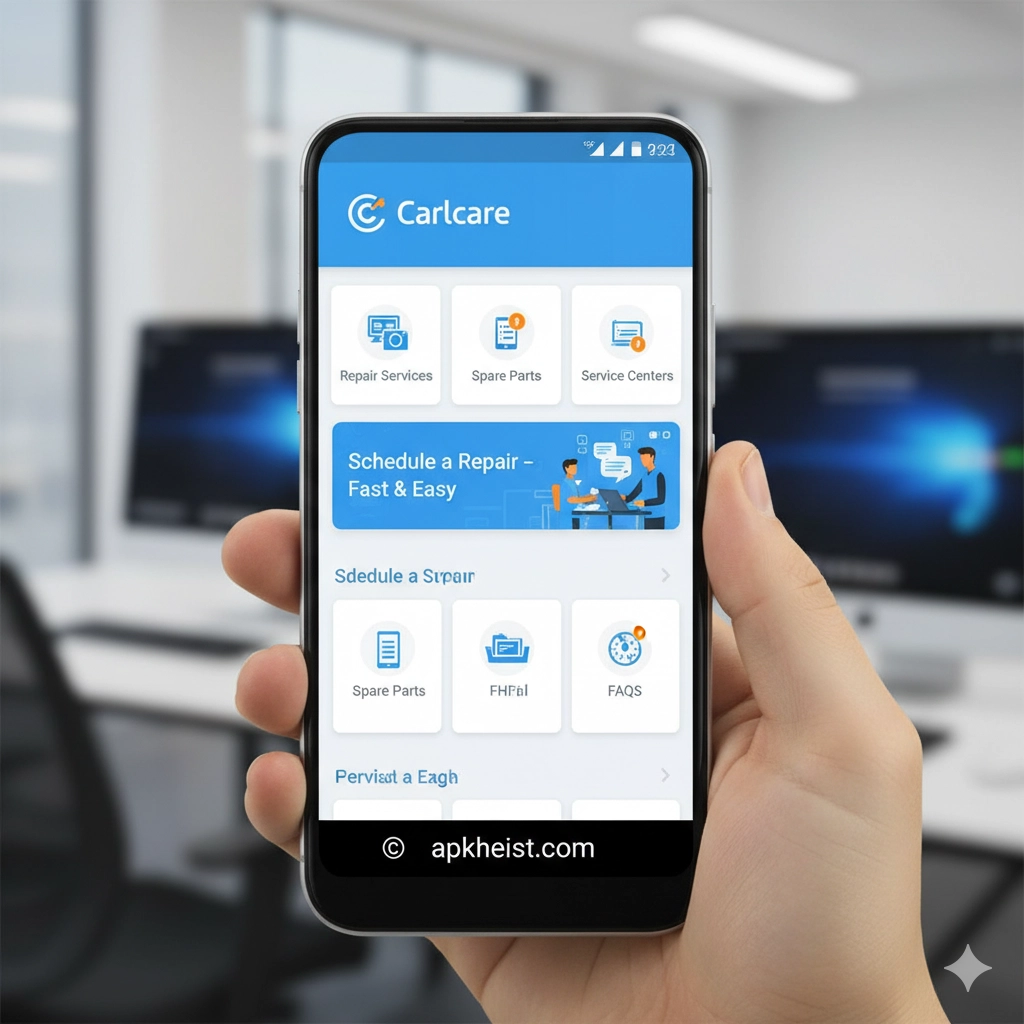
The Carlcare app centralizes after-sales services for mobile devices: warranty checks, service center locations, booking repairs, tracking repairs in real time, and accessing official support resources. Whether you need to verify warranty status, book an authorized repair, or check repair progress, the app aims to make every step transparent and trackable. In the sections below you will find a concise directory for quick navigation followed by in-depth coverage of each topic, plus a set of frequently asked questions addressing common user concerns.
1. App Overview — Quick explanation of the Carlcare app purpose and supported devices.
2. How to Install & Register — Step-by-step on downloading, installing, and creating an account.
3. Checking Warranty Status — How to verify warranty coverage and what information is required.
4. Booking a Repair — How to request service, choose authorized centers, and schedule appointments.
5. Repair Tracking & Notifications — Track repair stages and receive status updates.
6. Payment & Service Pricing — Overview of payment options, estimates, and how quotes are provided.
7. Data Backup & Privacy — Best practices for backing up data before service and privacy considerations.
1. App Overview
The Carlcare app is designed for end users who own devices covered by Carlcare service agreements. It acts as a single point of contact for warranty verification, locating authorized service centers, submitting service requests, and viewing repair history. The app supports scanning or entering device serial numbers and IMEIs to fetch warranty and eligibility details. For users who prefer self-service, many basic diagnostics and troubleshooting guides are included within the app so you can try simple fixes before booking a service appointment. Important: functionality can vary by region and by device brand; expect localized service menus and language options.
Firefox Nightly App: The Cutting-Edge
2. How to Install & Register
To get started, download the Carlcare app from your device's official app store or the authorized provider link. After installation, open the app and register with a valid phone number or email address. You will typically be asked to verify your account via an SMS code or email link. Next, add your device by entering its IMEI or serial number; some apps also allow device detection via Bluetooth or by scanning a barcode. Complete your profile with contact details so the service center can reach you about repairs. Tip: enable push notifications and location services to receive timely repair updates and to find the nearest service center automatically.
Is the Spacedesk App the Ultimate Multi
3. Checking Warranty Status
Warranty verification is one of the app’s core features. Enter the device IMEI/serial number and the Carlcare app will display warranty start and end dates, the type of coverage (limited, extended, or promotional), and any exclusions. If your device was purchased through an authorized retailer, the system should reflect that automatically — otherwise you may be prompted to provide proof of purchase. Be aware that repair eligibility depends on the type of damage and time since purchase. Note: accidental damage may not be covered under standard warranties; review the terms shown in the app carefully.
Share Cool Emoji Arts Designs App
4. Booking a Repair
Booking a repair through the Carlcare app typically follows these steps: (1) select your device and problem category, (2) choose an authorized service center from a map or list, (3) pick an available date and time, and (4) confirm the booking. The app may ask for additional details such as symptoms, photos, or short videos to help technicians diagnose the issue before arrival. Appointments are often cancellable or reschedulable through the booking page. Best practice: include clear photos of the issue and any visible damage to speed up check-in and diagnosis at the service center.
Rhymit App — The Writer’s Fast Rhyming
5. Repair Tracking & Notifications
After you submit a repair request, Carlcare provides a tracking interface that displays each processing stage: check-in, diagnosis, parts ordering (if needed), repair in progress, quality check, and ready for pickup. The app sends push notifications and may also SMS or email key updates. Real-time tracking reduces uncertainty and helps you plan around the repair timeline. If the repair requires parts, the app will typically give an estimated wait time and will request approval for any additional charges before proceeding. Transparency: use the built-in chat or notes field to ask the service team specific questions about timelines or parts sourcing.
B.o.T Game — Tactical Odyssey in a Broke

6. Payment & Service Pricing
Service pricing is shown in the app when a repair estimate is prepared. For out-of-warranty repairs, expect a breakdown that includes labor, parts, and taxes. The Carlcare app usually supports multiple payment methods: credit/debit card, mobile wallet, and sometimes in-person payment on pickup. Some regions allow prepayment to expedite service; others collect payment only at collection. If a repair is covered by warranty, you should see that the cost is zero or limited to diagnostic fees as specified by the policy. Advice: always review the estimate and the warranty coverage screen before approving repairs to avoid unexpected charges.
Sugar Rush — A Quick Adventure Game
7. Data Backup & Privacy
Before submitting a device for repair, back up important data. The Carlcare app will typically remind you to remove personal accounts and to perform a data backup; however, it cannot back up data for you unless it includes a specific backup tool. For repairs that require a factory reset, backup is essential. Regarding privacy, review the app’s privacy policy and any consent screens; authorized technicians should only access data strictly necessary for repair. Security checklist: remove SIM and SD cards if indicated, sign out of accounts where required, and note any device passwords to share only through the app’s secure channels if asked.
Gun Strike Game — The Complete Playe
FAQ 1: How do I find my device IMEI inside the Carlcare app?
Most devices will show IMEI in the device settings under "About phone." The Carlcare app also allows manual entry; some versions permit scanning the barcode on the device box or reading the IMEI directly if device permissions are granted. If you cannot find the IMEI, provide the serial number or proof of purchase at booking.
FAQ 2: Will Carlcare repair third-party or modified devices?
Service policies vary by region and by the brand's authorized service terms. Generally, devices with unauthorized modifications or third-party parts may be ineligible for warranty coverage and some authorized centers may refuse service. The app will indicate eligibility when you enter the device details.
FAQ 3: How long does a typical repair take?
Repair duration depends on the issue and parts availability. Diagnostics may take a few hours, simple repairs can be completed same-day, while repairs requiring ordered parts may take several days. The Carlcare app provides status updates and estimated completion dates.
FAQ 4: Can I cancel or reschedule a booked appointment?
Yes. Use the booking details in the app to cancel or reschedule according to the service center’s cancellation policy. Some centers require a minimum notice period for changes without penalty.
FAQ 5: What should I do if the app shows incorrect warranty information?
Contact Carlcare support through the app’s support or chat function and provide proof of purchase and device identifiers. The support team can manually validate your warranty status and correct records if necessary.
FAQ 6: Is it safe to provide payment details in the app?
Carlcare typically uses secure payment gateways; ensure you are using the official app and that the payment page displays secure indicators. Avoid sharing card details via plain messages — always use the app’s secure payment flow.
FAQ 7: How do I get a copy of my repair receipt or service record?
The app usually stores repair history and receipts in your account under "My Repairs" or "Service History." You can download or request an official invoice from the app, or obtain a printed copy at pickup.
Epic Heroes War Game: The Complete