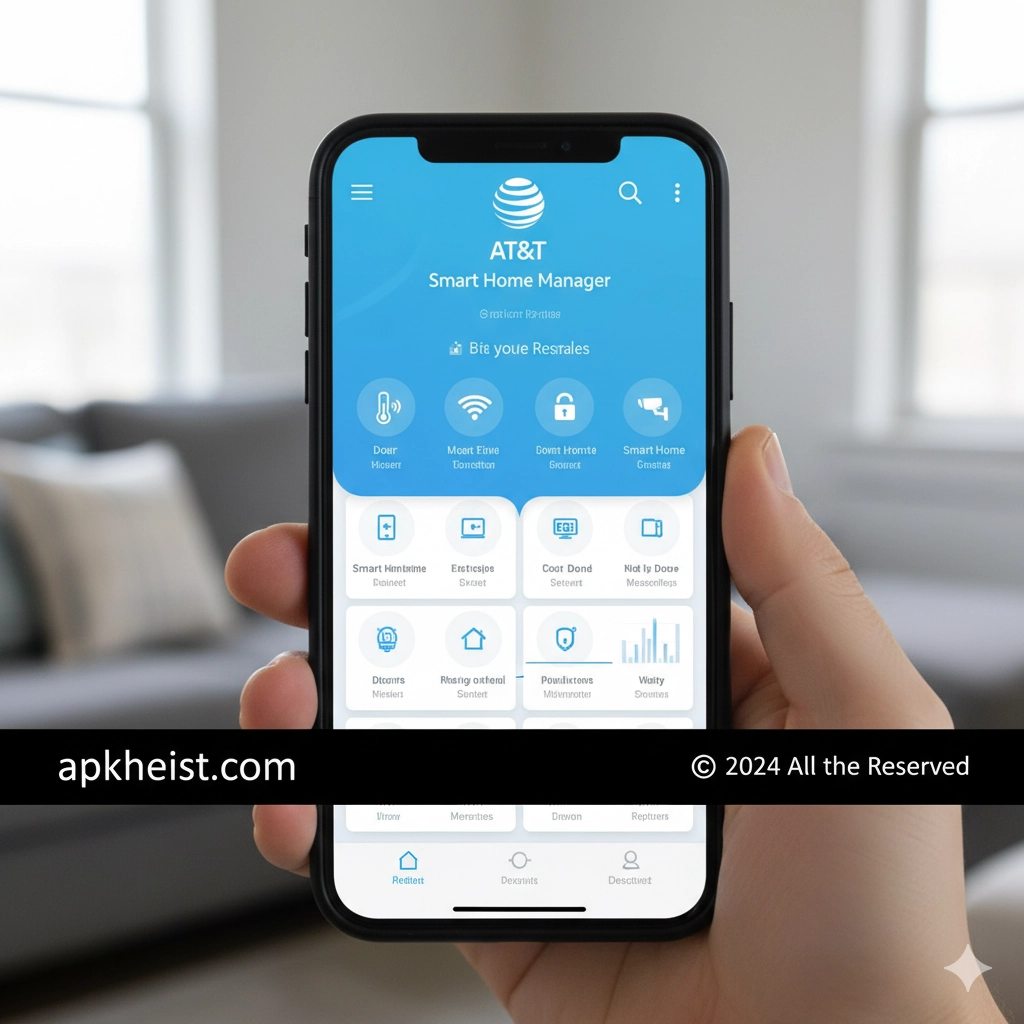
Long intro: AT&T Smart Home Manager is designed for homeowners, renters, and small-office users who want straightforward control over their Wi-fi network without complex setup. Through an intuitive mobile interface the app provides device lists, speed tests, guest network management, and parental controls. Whether you're troubleshooting slow streaming, creating access schedules for children, or optimizing performance for a work-from-home session, Smart Home Manager condenses essential tools into a compact, actionable experience. The guide below walks through its main features, practical tips, and answers to common questions so you can get the most from your AT&T Wi-fi environment.
1. Quick setup & first run — Fast steps to get the app connected to your AT&T gateway and verify internet access.
2. Device management — How to identify, name, and group devices on your network for clear visibility.
3. Parental controls & schedules — Using filters, bedtime schedules, and profile-based rules to manage kids’ access.
4. Network performance tools — Built-in speed tests, signal maps, and diagnostics to pinpoint issues.
5. Guest network & security settings — Safe ways to share access without exposing personal devices.
6. Prioritization & Quality of Service — How to prioritize devices or applications for smoother streaming or calls.
7. Troubleshooting & tips — Practical troubleshooting steps and best practices to maintain stable performance.
1. Quick setup & first run
When you launch Smart Home Manager for the first time, the app guides you through account sign-in and basic gateway discovery. The app typically locates your AT&T gateway automatically if you’re on the same network; otherwise you can sign in with your AT&T credentials. During setup you’ll verify your primary Wi-fi SSID (network name) and password, and confirm whether the gateway firmware needs updates. Tip: Always update the gateway firmware when prompted — updates often include stability and security fixes.
How Does the Motion: Tasks & AI Schedu
2. Device management
Smart Home Manager lists every device currently connected to your network with MAC address, device type (phone, smart TV, IoT plug), and observed activity. You can assign friendly names, create groups (for example “Living Room” or “Kids’ Devices”), and mark devices as recognized or unknown. Grouping simplifies later actions — for instance, pausing an entire group’s access during homework hours. The app also shows historical activity so you can see which devices consumed peak bandwidth and at what times.
What Makes the STELCO App an Essential
3. Parental controls & schedules
Parental controls are a core strength of Smart Home Manager. You build profiles for each child or device group, apply content filters (age-appropriate categories), and create time schedules that automatically block or allow access. For example, set school nights to block social media apps after 9:00 PM and permit educational sites during homework hours. The app also supports immediate pauses to enforce screen-free breaks. Best practice: combine schedule rules with clear family expectations — technical controls work best when paired with conversation.
Discover the Power of GP Chat AI
4. Network performance tools
Smart Home Manager includes several diagnostics: a built-in speed test measures current download/upload throughput and latency; a signal map shows approximate Wi-fi coverage, and a device-by-device performance view highlights top bandwidth consumers. Use the speed test when you experience buffering or lag — it helps you determine if the bottleneck is your ISP connection or some local device. The signal map can reveal dead zones where an extender or repositioning the gateway would help.
Discover the Power of BLOApp App

5. Guest network & security settings
Guest networks keep visitors isolated from your main devices. Smart Home Manager allows you to enable/disable the guest SSID, set a separate password, and configure an expiration (for example, a single-day pass). Security settings include WPA3/WPA2 mode selection where supported, and simple reminders to change default administrative credentials. For homes with many IoT devices, creating a dedicated IoT guest network reduces risk by limiting lateral access between devices.
6. Prioritization & Quality of Service
Smart Home Manager’s prioritization features let you assign higher priority to video calls, gaming consoles, or streaming boxes during key times. Prioritization does not change absolute bandwidth but allocates relative precedence on congested links so latency-sensitive apps perform better. For remote work, prioritize your laptop and conferencing application during business hours. Use this sparingly — over-prioritization can starve other devices and create a brittle configuration.
How Can the Caho Calendar-Schedule Plan
7. Troubleshooting & tips
Common issues and simple remedies:
Slow speeds: run the app’s speed test; if ISP speeds are below plan, reboot the gateway and check cables. If the gateway reports normal uplink speeds but a single device is slow, reboot that device and check its Wi-fi signal strength.
Intermittent disconnects: check for firmware updates, move the gateway away from large metal objects, and avoid placing it near microwaves or cordless phones that can cause interference.
Unknown devices: temporarily block the device, then observe reconnection attempts; most devices will display a friendly name you can use to identify them. If a device remains unknown, consider rotating your Wi-fi password and reconnecting trusted devices.
Setmore Appointment Scheduling App
FAQ 1: Is AT&T Smart Home Manager free?
The Smart Home Manager app is available at no additional cost to AT&T internet customers. Some advanced gateway features require compatible hardware (AT&T-supplied gateway models) that come with certain service tiers. Check your account details to confirm whether your gateway supports the full feature set.
FAQ 2: Can I control Smart Home Manager remotely when I'm away from home?
Yes. After signing into the app with your AT&T account, you can access your network remotely. This allows you to pause devices, run a speed test, or check device lists while you’re not physically on the home network. Ensure your account credentials are secured with a strong password and two-factor authentication where offered.
FAQ 3: How accurate is the app’s device identification?
Device identification relies on MAC addresses, DHCP fingerprinting, and reported device names. While usually accurate, some IoT devices may be labeled generically (e.g., “Unknown Device”). You can manually rename devices for clarity and group them to reflect household layouts or user ownership.
FAQ 4: Will the parental controls block VPNs or masked traffic?
Parental filters operate at the gateway level and may not inspect encrypted VPN traffic fully. If a device uses a VPN, content filters could be bypassed. For strict enforcement consider pairing gateway controls with on-device controls or DNS-level filtering services that inspect and enforce policies more comprehensively.
FAQ 5: Can the app diagnose Wi-fi dead zones?
Smart Home Manager provides a signal-strength overview and device connection details that help identify weak coverage areas. For precise mapping, walk your home while observing reported signal levels per device; consider adding extenders or a mesh system if your gateway can’t reach key areas.
FAQ 6: Does the app work with non-AT&T routers or mesh systems?
Full functionality typically requires an AT&T gateway or a compatible gateway supplied or approved by AT&T. If you use a third-party router in bridge mode, some features may be limited or unavailable. Consult AT&T support documentation for compatibility details and recommended configurations.
FAQ 7: How do I secure my Smart Home Manager account?
Use a strong, unique password for your AT&T account, enable two-factor authentication if available, and restrict account access to trusted individuals. Periodically review the device list for unfamiliar connections and update the gateway admin password from the default to a strong passphrase.