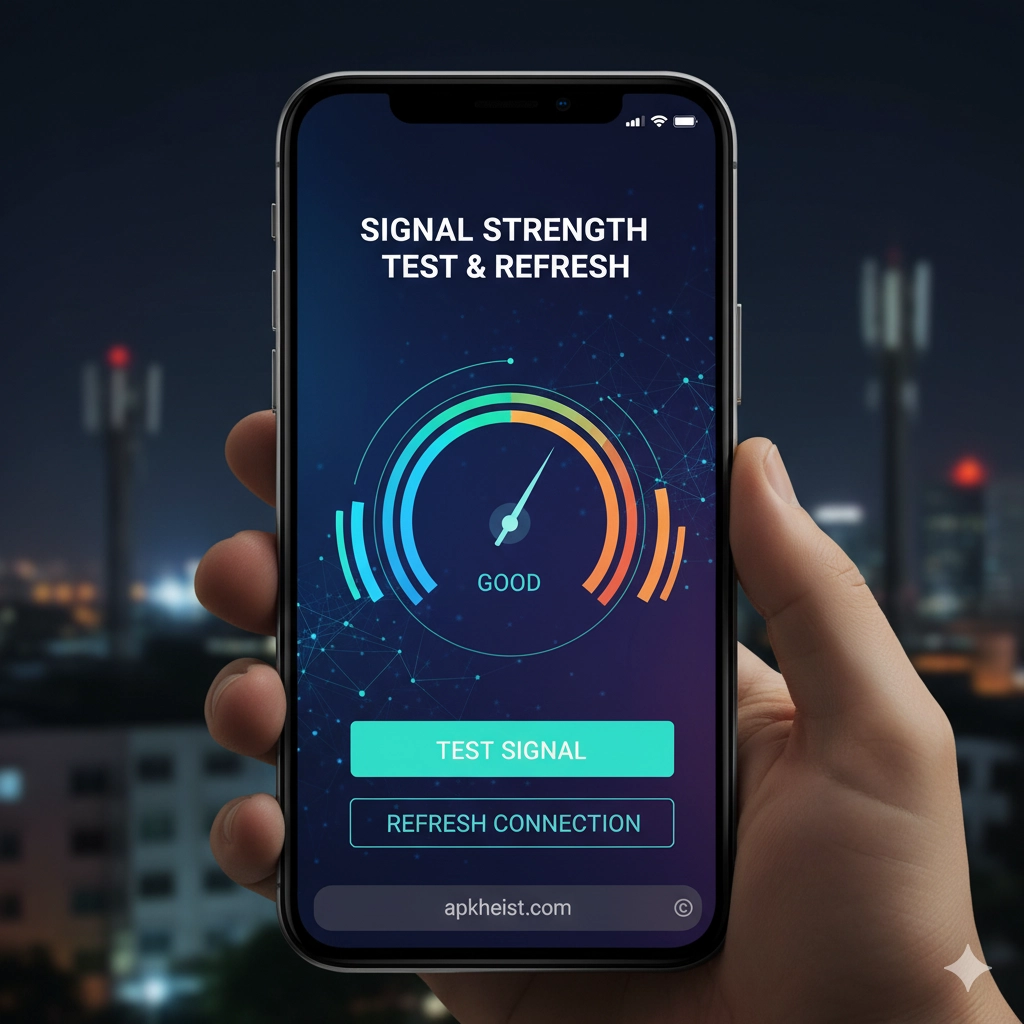
Long intro: In an era when business, navigation, streaming, and emergency services all depend on reliable wireless connections, understanding and managing signal quality is essential. A Signal Strength Test & Refresh app provides real-time metrics, logging, and refresh controls that allow users and technicians to measure reception, isolate interference, and force network reattach or refresh operations. This guide walks through practical uses, step-by-step procedures, advanced diagnostics, and frequently asked questions so that both casual users and technical operators can get the most value from these tools. Selected resources and related app links from relevant app directories are included throughout to help you explore complementary utilities and troubleshooting references.
Contents (quick directory):
1. Overview — What the app measures and why those metrics matter (see section #1)
2. Installation & Permissions — Required settings, permissions, and privacy considerations (see section #2)
3. Running a Basic Test — Step-by-step test flow for signal strength and data throughput (see section #3)
4. Refresh & Reattach Functions — When and how to use refresh operations safely (see section #4)
5. Advanced Diagnostics — Logging, historical charts, and interpreting TN/RSRP/RSRQ/SINR (see section #5)
6. Common Issues & Fixes — Interference, carrier handoffs, and device configuration (see section #6)
7. Best Practices & Field Checklist — Practical checklist for on-site testing and reporting (see section #7)
1. Overview — What the app measures and why those metrics matter
The Signal Strength Test & Refresh app aggregates multiple radio and network indicators into a single interface so users can understand connection health at a glance. Typical metrics include received signal strength (RSSI), reference signal received power (RSRP), reference signal received quality (RSRQ), signal-to-interference-plus-noise ratio (SINR), and basic throughput (download/upload speeds). Each metric has a role: RSSI and RSRP indicate raw power; RSRQ and SINR indicate quality and interference; throughput reveals the user experience under load. Together they allow you to distinguish between weak coverage, poor quality caused by interference, and network congestion. Understanding these terms is critical when you must decide whether a problem is device-side, local-environment, or carrier-side.
Related resource example (directory reference): https://apkheist.com/articles/firefox-nightly-app-the-cutting-edge-browser-for-power-users-and-testers — use such app directories to find companion diagnostic tools and browser-based testers for network services.
2. Installation & Permissions — Required settings, permissions, and privacy considerations
Installing a signal testing app typically requires granting access to location services and device state because modern mobile platforms restrict radio scanning to apps with a legitimate need. On Android, you will usually permit location and read phone state; on iOS, options are more limited and some radio metrics are not exposed to third-party apps. Always review permissions: a reputable app will explain why each permission is required and will not transmit identifying information without consent. If you work in regulated environments, verify that logging adheres to your company’s privacy policy. When possible, use apps from recognized directories and check user reviews and changelogs before installing. For additional tool suggestions and related testing utilities consult: https://apkheist.com/tools/ and category pages for communication and networking apps.
3. Running a Basic Test — Step-by-step test flow for signal strength and data throughput
Begin in a controlled state: close nonessential apps and, if testing cellular, avoid Wi-Fi to measure the carrier link accurately (or run both tests separately). Steps:
• Open the app and allow the required permissions.
• Note the baseline metrics at your starting location (RSSI/RSRP/RSRQ/SINR and current cell ID).
• Run an upload/download speed test to correlate throughput with raw radio figures.
• Walk or drive a planned route, logging metrics at consistent intervals and noting the physical environment (indoors/outdoors, obstructions, elevation).
• Save/export the log for later analysis or for sharing with carrier support.
Use additional reference material and companion applications for cross-checking results; see example app listings such as: https://apkheist.com/articles/is-the-spacedesk-app-the-ultimate-multi-display-solution- for multi-display testing workflows when you require secondary monitoring devices.

4. Refresh & Reattach Functions — When and how to use refresh operations safely
Refresh or reattach functions instruct the device’s radio stack to re-register with the network, clear stale context, or force a new cell selection. Typical triggers for using refresh include persistent low throughput despite adequate signal strength, stuck on a low-quality cell, or after switching carriers in dual-SIM setups. Use refresh carefully: forcing frequent reattaches can temporarily disrupt active sessions and, in dense networks, may increase signaling load. Best practice: document the state before refresh, perform the refresh, then immediately log the post-refresh metrics to compare. If a refresh produces no improvement, the issue likely lies beyond the device (tower outage, provisioning, or backhaul congestion). For tools that augment refresh workflows and in-field monitoring, review related utilities: https://apkheist.com/articles/share-cool-emoji-arts-designs-app-create-customize-and-share-playful-emoji-art — while not a network tool itself, directory pages contain other communication utilities you may find useful for reporting or annotation during field tests.
5. Advanced Diagnostics — Logging, historical charts, and interpreting RSRP/RSRQ/SINR
Professional use of a Signal Strength Test & Refresh app involves deep logging and correlation with network events. Keep multi-layer logs: raw radio metrics, timestamps, GPS coordinates, cell IDs, and throughput samples. Longitudinal charts reveal trends (e.g., degradation during peak hours). Interpreting numbers requires ranges: RSRP below a certain dBm level indicates coverage gaps; poor RSRQ/SINR highlights interference or excessive load. When troubleshooting, correlate spikes in retransmissions or TCP timeouts with dips in SINR. Export logs in CSV or standardized formats when collaborating with carrier engineers. Secondary utilities and monitoring dashboard apps available from the same app directories may simplify charting and sharing; explore listings like https://apkheist.com/articles/rhymit-app-the-writer-s-fast-rhyming-companion to discover potential companion apps for note taking and report generation during fieldwork.
6. Common Issues & Fixes — Interference, carrier handoffs, and device configuration
Common causes of poor perceived connectivity include physical obstructions (building materials, terrain), RF interference (other electronics, adjacent channels), carrier load, and incorrect device band selection. Fixes include relocating, toggling airplane mode (a lightweight reattach), switching preferred network types (e.g., forcing LTE vs 5G when indicated), updating carrier settings, and verifying SIM provisioning. For enterprise scenarios, consider femtocells or signal boosters where permitted. When working with multiple tools, cross-reference results and keep a change log. For example, when you need to compare results on different devices or platforms, consult related app pages and directories such as https://apkheist.com/articles/epic-heroes-war-game-the-complete-guide-to-strategy-heroes-and-victory — directory resources often list multiple utilities within the same category for testing and reporting.
7. Best Practices & Field Checklist — Practical checklist for on-site testing and reporting
Field testers should follow a concise checklist to ensure repeatable and defensible measurements:
• Verify device and app versions; record firmware and OS info.
• Confirm permissions and that no VPN or proxy is altering results.
• Calibrate baseline in a known good location before testing target sites.
• Record environmental notes (time, weather, obstructions, device orientation).
• Perform multiple runs at different times to capture temporal variations.
• Export logs in a standard format and include screenshots where helpful for visual context.
To compare auxiliary utilities and find additional tools for in-field reporting, browse category pages and curated articles in app directories such as https://apkheist.com/articles/soul-knight-game-the-ultimate-guide-to-dungeon-shooting-adventure which often link to relevant tools in their sidebars and related links sections.
Frequently Asked Questions (7):
Q1: What exactly is the difference between RSRP and RSSI?
A1: RSSI is a general measurement of received signal power including noise and interference, often platform-dependent and less precise for LTE/5G diagnostics. RSRP (Reference Signal Received Power) is a standardized LTE/NR metric measuring the power of reference signals and offers a more reliable indicator of coverage quality for cellular networks.
Q2: Will a refresh operation improve my data speed?
A2: A refresh can help if your device is attached to a poor-quality cell or has stale network context. It will not resolve issues caused by physical coverage gaps or carrier backhaul congestion. Always log before/after metrics to determine effectiveness.
Q3: Can I use the app indoors effectively?
A3: Yes — but indoor readings are influenced by building materials and local interference. For meaningful diagnostics, record the precise indoor location (floor, room) and compare with outdoor baselines nearby.
Q4: Is it safe to grant location and phone state permissions?
A4: Reputable testing apps request those permissions because modern OSes restrict access to radio scans. Assess the app’s privacy policy and limit logging or sharing of personally identifying information if privacy is a concern.
Q5: How often should I run signal tests?
A5: For casual users, run tests when you notice issues or after environmental changes. For professional monitoring, schedule tests at multiple times of day (peak and off-peak) and keep automated logs where supported.
Q6: Can these apps diagnose Wi-Fi and cellular at the same time?
A6: Many apps provide both Wi-Fi and cellular metrics, but best practice is to test them separately to avoid cross-contamination of results. When testing both, document which interface was active during each sample.
Q7: What should I include in a support report to my carrier?
A7: Include timestamped logs, GPS coordinates or clear location description, screenshots of the app showing problematic metrics, and a summary of steps you took (including refresh attempts). Exported CSV logs and a concise narrative of observed symptoms improve response effectiveness.
Closing note: Use the app as part of a structured troubleshooting workflow: measure, document, refresh when appropriate, and escalate with clear logs when carrier intervention is required. For additional utilities, app directories and article collections can point you to complementary tools and testing resources across categories such as Tools, Communication, and Productivity.