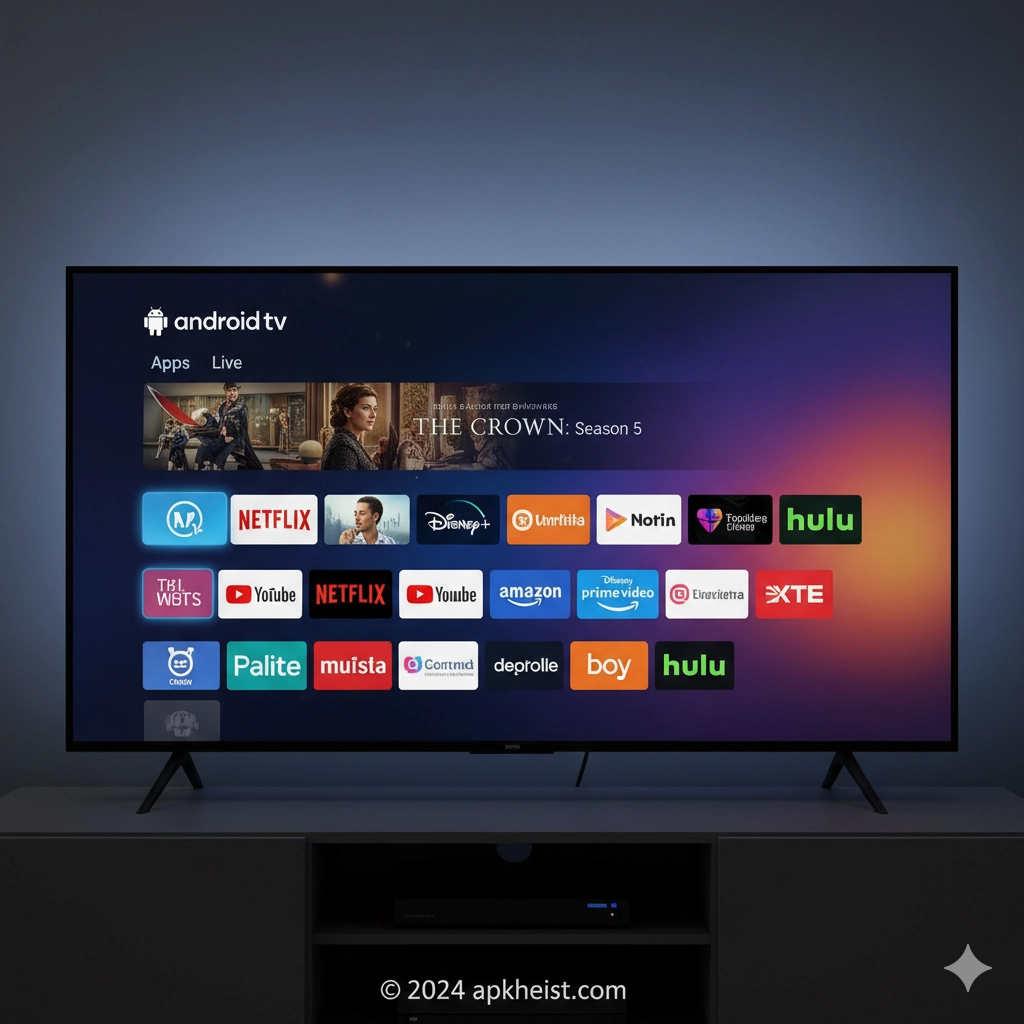
Extended introduction: Android TV Home is the central launcher and user experience layer that appears when you turn on an Android TV or Google TV device. It combines a row-based app grid with personalized recommendations, quick access to inputs and settings, and integration with streaming services and smart-home controls. For families and power users alike, Android TV Home aims to reduce friction: fewer remote presses to resume shows, faster discovery of content, and a predictable navigation model across broad hardware variations. In the sections below you’ll find a practical guide to setup, customization, performance tuning, troubleshooting, privacy considerations, and a set of FAQs to answer common questions. For related app examples and tools you may also find these resources useful: U-Watch App (https://apkheist.com/articles/u-watch-app-is-this-the-smartest-way-to-monitor-and-manage-your-daily-health-), LOST in BLUE Game (https://apkheist.com/articles/lost-in-blue-game-the-complete-survival-amp-exploration-guide), and VPN India – Get Indian IP App (https://apkheist.com/articles/vpn-india-get-indian-ip-app-is-it-the-smartest-way-to-access-india-based-content-).
1. Setup & First-Run Wizard — Quick steps to get your Android TV Home configured and linked with accounts.
2. Personalization & Row Management — How to reorder rows, hide suggestions, and pin favorite apps.
3. App Shortcuts & Input Integration — Add inputs, game launchers and HDMI-CEC device controls to the home experience.
4. Performance & Storage Optimization — Free up space, manage background apps, and improve responsiveness.
5. Voice, Search & Google Assistant — Best practices for voice control, discovery and contextual search results.
6. Privacy & Data Controls — What recommendations collect, how to limit personalized suggestions, and account settings.
7. Troubleshooting Common Issues — Black screens, apps not appearing, remote pairing and recommendation glitches.
1. Setup & First-Run Wizard
The initial setup of Android TV Home typically begins with a first-run wizard that walks you through Wi-Fi, signing in with a Google Account, and optional linking of streaming services. During setup the system asks permission to collect usage data for personalized recommendations; you can opt out to keep the home screen generic. If you have multiple accounts on the device, Android TV Home supports fast switching and will surface recommendations per active profile. For devices that shipped with a custom OEM launcher, a system setting often allows switching back to the stock Android TV Home. To register additional devices or pair remotes, use the Settings > Remotes & Accessories menu. If you need companion mobile apps or setup guides, many device manufacturers publish step-by-step articles; examples of related app guides you might consult include Star Stable Online Game (https://apkheist.com/articles/star-stable-online-game-your-ultimate-guide-to-the-horse-adventure-world) for patterning walkthrough style content and City Car Drifting Driving Game (https://apkheist.com/articles/city-car-drifting-driving-game-mastering-urban-slides-and-street-stunts) for navigation-style tutorials.

2. Personalization & Row Management
Android TV Home organizes the screen into rows for apps, recommended shows, and inputs. You can personalize the order: long-press an app tile (or press the options button on many remotes) to move, pin, or uninstall. To reduce clutter, hide content rows provided by specific apps by opening the Apps row, selecting the app’s options and toggling recommendation permissions. Power users should consider creating a “Favorites” row by pinning apps they use most, which keeps key items visible above algorithmic suggestions. Remember that some streaming apps will reintroduce their own rows unless you restrict their recommendation permission in Settings. For natural inspiration on structuring categories and editorial rows, check resources like Pokémon GO Game (https://apkheist.com/articles/pok%C3%A9mon-go-game-the-modern-ar-adventure-that-keeps-you-moving) which show how to surface repetitive, high-value items to users in a compact space.
3. App Shortcuts & Input Integration
One strength of Android TV Home is integration of inputs and shortcuts: add HDMI inputs, game consoles, and casting targets so they appear alongside apps. Enable HDMI-CEC in your TV and within the device settings so that consoles and receivers appear as input tiles. For gaming, you can add direct-launch shortcuts to cloud gaming apps or local launchers to reduce the number of button presses before play. If you use an external media player or networked PVR, configure it under Settings > Inputs so the home screen treats it like a first-class item. For concrete examples of building user journeys that mix app content and inputs, see editorial-style app guides such as Dead Rails: Survive Simulator Game (https://apkheist.com/articles/dead-rails-survive-simulator-game-ultimate-survival-guide-for-new-and-pro-players) which demonstrate combining disparate content types into a unified navigation flow.
4. Performance & Storage Optimization
Android TV devices vary widely in CPU, memory and flash storage. If Android TV Home feels slow, start by clearing unused apps and disabling background-heavy services. In Settings > Apps, inspect large caches and clear them selectively; uninstall apps you no longer use. Limit background processes by disabling autostart for nonessential apps when the option exists. For older devices, choose a static wallpaper rather than a live or high-resolution background—less GPU work means smoother scrolling of the home rows. If persistent lag continues, consider a factory reset as a last resort, and re-evaluate whether the device firmware has an available update. Performance tuning resources and step-by-step cleanup articles—similar in practical approach to guides like RealmCraft Game: A Complete Exploration (https://apkheist.com/articles/realmcraft-game-a-complete-exploratio)—are helpful when you need structured, actionable steps.
5. Voice, Search & Google Assistant
Android TV Home integrates Google Assistant for universal search and voice control. Use the microphone button on the remote or voice-enabled controllers to ask for content across installed streaming apps, or to control smart-home devices. To improve results, link streaming services in Settings > Accounts & Sign-in: the assistant can then prioritize content available on your subscriptions. When privacy is a concern, note that voice interactions may be stored in your Google account; you can control this via Google Account settings on the web. Tips for voice-first navigation: learn the phrasing that returns results across multiple services (for example, “Play the latest episode of [show name] on [service]”) and pin the app you want the assistant to favor in the home row to reduce cross-service ambiguity.
6. Privacy & Data Controls
Recommendations on Android TV Home are driven by a mixture of on-device signals and cloud-based personalization linked to your Google Account. To reduce personalization, go to Settings > Privacy and disable “Improve recommendations” or “Share usage data” where present. You can also turn off app-specific recommendations by selecting the app in Apps and toggling recommendations. If multiple household members share the same TV, consider creating separate profiles (if supported) or using guest mode to avoid intermixed viewing suggestions. For VPN usage or region-specific content controls that affect recommendations, consult trusted VPN guides such as VPN India – Get Indian IP App (https://apkheist.com/articles/vpn-india-get-indian-ip-app-is-it-the-smartest-way-to-access-india-based-content-) for how regional mapping can alter available content and metadata.
7. Troubleshooting Common Issues
Common Android TV Home issues include missing app tiles, recommendations not updating, remote pairing failure, and display anomalies when switching inputs. Start by rebooting the device and your TV, then check for system updates. If an app is missing, verify it remains installed under Settings > Apps; some apps hide from the launcher intentionally. For recommendation glitches, clear the cache for the “Android TV Home” system app (Settings > Apps > Show system > Android TV Home) and restart. For remote issues, re-pair from Settings > Remotes & Accessories or replace batteries in IR remotes. If HDMI-CEC related inputs aren’t detected, confirm CEC is enabled on both TV and device; different manufacturers often label CEC differently (e.g., Anynet+, Bravia Sync). For a structured troubleshooting checklist and step-by-step fixes, you can model your approach on in-depth guides like Adventure Escape Mysteries Game (https://apkheist.com/articles/adventure-escape-mysteries-game-complete-guide-to-puzzles-stories-and-secrets) which emphasize methodical diagnosis and incremental fixes.
FAQ 1 — What is Android TV Home and why does it matter?
Android TV Home is the default launcher/home screen for Android TV and Google TV devices. It matters because it is the first interface users engage with: it surfaces apps, content recommendations and inputs so that watching or launching apps requires minimal navigation.
FAQ 2 — How do I hide recommendation rows I don’t want to see?
Open Settings > Apps, choose the app supplying the unwanted row, and turn off its recommendation permission. Alternatively, long-press the row header (if supported) to reveal a hide or manage option. If those controls are not present, the app may not expose recommendation toggles and you may need to uninstall or disable the app to remove its row.
FAQ 3 — My favorite app doesn’t appear on the home screen — how do I pin it?
Navigate to the Apps row, find the app, then long-press or press the menu/options button and choose “Move” or “Pin to top.” On some devices you can also open the app’s details and enable “Show on Home screen.”
FAQ 4 — Is it possible to use Android TV Home without a Google Account?
Basic usage may be possible without a Google Account, but many features—personalized recommendations, app purchases, and voice search integration—require signing in. For privacy-focused use, create a limited account and restrict data-sharing settings.
FAQ 5 — How can I speed up a sluggish Android TV Home?
Remove unused apps, clear large app caches in Settings > Apps, disable background autostart where available, and avoid heavy live wallpapers. If performance remains poor, apply system updates or consider a higher-performance streaming device.
FAQ 6 — Will Android TV Home show content from all installed streaming apps?
Most major streaming apps that integrate with Android TV will surface content on the home screen if you’ve granted recommendation permissions. Some apps do not integrate or may limit the data they expose. Linking accounts in Settings helps the system present more accurate results.
FAQ 7 — How do I restore the default home layout after experimenting with customizations?
You can usually reset the launcher by clearing data for the “Android TV Home” system app (Settings > Apps > Show system > Android TV Home > Clear data). This returns the home screen to its default state; you may need to re-link accounts and reconfigure pinned apps afterward.