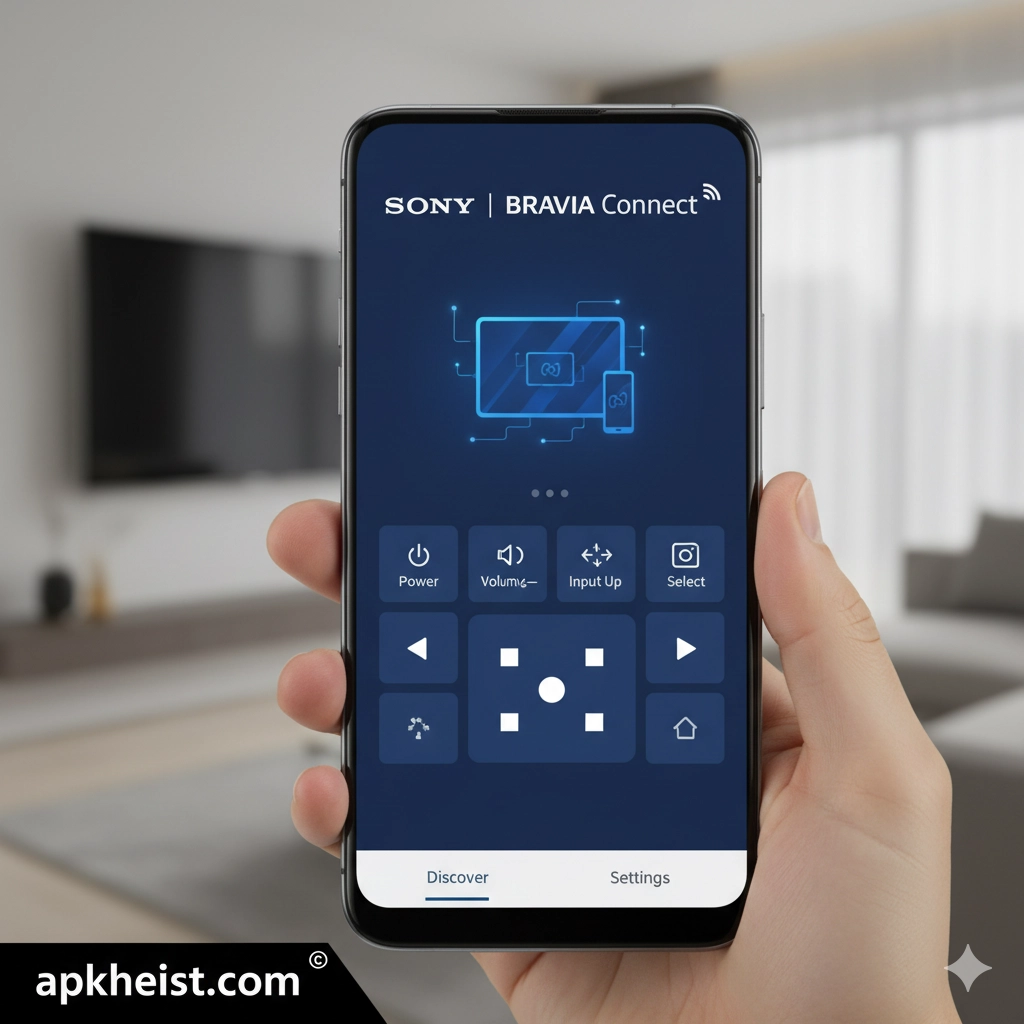
Long intro: Sony BRAVIA Connect is the suite of software and services that turns a BRAVIA television into a connected entertainment hub. Beyond basic streaming, BRAVIA Connect offers app management, voice control, casting, and device interoperability tailored to Sony's hardware. This article provides a structured, in-depth exploration: feature breakdowns, setup and troubleshooting guidance, practical usage scenarios, optimization tips, and a full FAQ to address common user questions. Selected related links from our resource collection are referenced in context to illustrate cross-app workflows and complementary tools.
Navigation / section lead:
1. Overview & Capabilities — Brief summary of BRAVIA Connect functions
2. Setup & First-Time Configuration — What to expect when you first enable BRAVIA Connect
3. App Management & Store — How to find, install, update, and remove apps
4. Casting, Screen Mirroring & Multi-device Workflows — Integrating phones, tablets and game consoles
5. Performance & Network Optimization — Keep your streaming smooth
6. Troubleshooting Common Issues — Practical diagnostics and fixes
7. Advanced Tips & Privacy — Power-user settings and privacy considerations
1. Overview & Capabilities
Sony BRAVIA Connect consolidates streaming apps, on-demand content, firmware updates, and advanced picture/sound profiles into a unified interface accessible through the BRAVIA Home screen. Key features include a curated app ecosystem, voice assistant integration, Chromecast built-in support, and BRAVIA-specific picture modes (e.g., Netflix Calibrated Mode). The platform is optimized for Sony's display technologies and may expose additional functionality on higher-end models.
2. Setup & First-Time Configuration
Initial setup typically involves connecting the TV to a reliable Wi-Fi network, signing into or creating a Sony account, and granting permission for software updates and personalized recommendations. Pay attention to network selection during setup: a stable 5 GHz band is preferred for high-bitrate HDR streams. If using external accounts for streaming services, prepare credentials and any required two-factor authentication devices before proceeding.
3. App Management & Store
BRAVIA Connect provides access to a dedicated app layer where you can discover, install, and manage applications. Use the built-in store to search by name or category; remember that availability varies by region and TV model. Keep apps updated via the store to ensure compatibility with the latest firmware. For workflows combining BRAVIA with mobile apps, consider complementary services (for example, health-monitoring or VPN tools) when building an ecosystem — see reference resources such as: https://apkheist.com/articles/u-watch-app-is-this-the-smartest-way-to-monitor-and-manage-your-daily-health- and https://apkheist.com/articles/vpn-india-get-indian-ip-app-is-it-the-smartest-way-to-access-india-based-content- for examples of peripheral app use cases.

4. Casting, Screen Mirroring & Multi-device Workflows
BRAVIA Connect supports Chromecast built-in, enabling direct casting from mobile devices and Chrome browsers. Screen mirroring options allow presenting content from compatible Android devices or PCs. For gamers, pairing a console via HDMI while using BRAVIA Connect for game-streaming apps is common. Some users combine location-targeted or AR mobile experiences with the TV for hybrid setups — examples of mobile-first AR/AR-adjacent apps include titles like https://apkheist.com/articles/lost-in-blue-game-the-complete-survival-amp-exploration-guide and https://apkheist.com/articles/pok%C3%A9mon-go-game-the-modern-ar-adventure-that-keeps-you-moving which illustrate cross-device engagement scenarios.
5. Performance & Network Optimization
To ensure consistent high-definition streaming, prioritize a wired Ethernet connection where possible or place your router to minimize interference for Wi-Fi. Update the TV firmware and apps regularly to benefit from performance patches. If you use VPNs for geo-specific content or privacy, test throughput and latency: a VPN may alter streaming stability. For reference on network-related and entertainment app behavior in variable network conditions, consult example case studies such as https://apkheist.com/articles/dark-city-london-f2p-mystery-game-is-this-the-most-immersive-free-mystery-adventure- and https://apkheist.com/articles/city-car-drifting-driving-game-mastering-urban-slides-and-street-stunts which document how network performance impacts real-time interactive content.
6. Troubleshooting Common Issues
Typical problems include app crashes, buffering, audio sync issues, and remote pairing failures. Start with these steps: reboot the TV and router, confirm firmware and app updates, test with a wired connection, and clear app caches if available. If a particular app fails repeatedly, uninstall and reinstall it. For more specialized diagnostic approaches — such as isolating interference or identifying HDMI handshake issues — note any recent changes (new devices, router firmware updates) and revert temporarily to a known-good configuration.
7. Advanced Tips & Privacy
Advanced users may customize picture profiles, disable automatic content recognition, or opt out of personalized recommendation telemetry in the settings menu to increase privacy. When integrating third-party services, review their privacy policies and consider separate device-level controls (e.g., guest networks or VLANs) for IoT devices. For users experimenting with cross-app combinations and content aggregation, curated puzzle/adventure app experiences (see https://apkheist.com/articles/adventure-escape-mysteries-game-complete-guide-to-puzzles-stories-and-secrets) can be instructive when assessing how TV and mobile apps interoperate.
FAQ 1: What devices and operating systems are compatible with Sony BRAVIA Connect?
Answer: BRAVIA Connect is native to Sony BRAVIA TVs and compatible with a wide array of Android and iOS devices for casting and companion app use. Specific features and app availability depend on TV model and region; consult your TV's specification sheet for exact compatibility notes.
FAQ 2: How do I update BRAVIA Connect apps and firmware?
Answer: Navigate to the system settings and software update section to update firmware. For apps, open the BRAVIA app store on the TV and check for available updates. Enabling automatic updates streamlines this process but verify storage capacity if your TV has limited internal space.
FAQ 3: Why is streaming buffering on my BRAVIA TV?
Answer: Buffering is usually caused by insufficient network bandwidth or unstable Wi-Fi. Test with a wired Ethernet connection, reduce competing network traffic, or lower the playback quality in the streaming app. If buffering persists across sources, check for firmware updates and contact your ISP to confirm upstream performance.
FAQ 4: Can I use voice assistants with BRAVIA Connect?
Answer: Yes. Many BRAVIA models support Google Assistant or have compatibility with Amazon Alexa via external devices. Voice control capabilities vary by model and software version; enable the voice assistant in settings and confirm microphone permissions where applicable.
FAQ 5: How do I manage installed apps and free up space?
Answer: In the apps or storage management section, remove unused apps and clear caches where available. Some BRAVIA models allow moving certain apps to external storage if supported. Regular housekeeping prevents performance degradation due to filled storage.
FAQ 6: Is my BRAVIA TV secure when connected to third-party apps and services?
Answer: Security depends on account hygiene, network segmentation, and app permissions. Use strong, unique passwords for connected accounts, enable two-factor authentication where offered, and consider isolating entertainment devices on a separate network from sensitive home systems.
FAQ 7: Where can I find complementary apps and resources to enhance my BRAVIA experience?
Answer: Discover apps via the BRAVIA store. Additionally, explore complementary mobile and service apps that extend TV functionality — examples include health-monitoring or region-specific VPN services and interactive entertainment titles; see resource examples such as https://apkheist.com/articles/u-watch-app-is-this-the-smartest-way-to-monitor-and-manage-your-daily-health- , https://apkheist.com/articles/vpn-india-get-indian-ip-app-is-it-the-smartest-way-to-access-india-based-content- , and https://apkheist.com/articles/pok%C3%A9mon-go-game-the-modern-ar-adventure-that-keeps-you-moving for illustrative use cases.
Closing note: Sony BRAVIA Connect is most effective when you balance convenience (automatic updates, personalized recommendations) against control (privacy, app permissions). Use the diagnostic and network tips above to keep the system responsive, and consult Sony support or your retailer for model-specific assistance.