Long intro: Hulu has evolved from a TV-catchup service into a comprehensive streaming platform combining on-demand libraries, original programming, and optional live TV. Its mobile and smart-TV apps emphasize personalized recommendations, profiles, and flexible subscription tiers. In the sections below you’ll find practical features, setup recommendations, content discovery strategies, and troubleshooting guidance. Along the way, a few related resources are referenced to help situate Hulu among other media apps and streaming experiences — follow those links for additional reading and context.
1. Getting Started with Hulu — Quick setup steps and subscription choices.
2. Navigating the Interface — Tips for finding shows, using the search, and managing profiles.
3. Downloading & Offline Viewing — How to download and manage offline content.
4. Hulu + Live TV Explained — What you get with Live TV, cloud DVR, and channels.
5. Profiles, Parental Controls & Kids Mode — Managing viewing for families.
6. Audio, Subtitles & Accessibility — Best practices for captions, audio tracks, and accessibility features.
7. Troubleshooting Common Problems — Connectivity, playback, and subscription issues.
1. Getting Started with Hulu
Hulu’s onboarding is straightforward: create an account, choose a plan, and install the Hulu app on your device. Plans vary from an ad-supported on-demand tier to ad-free and Hulu + Live TV bundles. Consider whether you need live channels, cloud DVR storage, or simultaneous streams before choosing. Payment options include monthly billing and occasional promotional bundles with partners. If you’re deciding between services, it helps to read comparisons; for broader context on alternative entertainment apps and app discovery, see some related writeups linked below for additional perspective on how apps position features and pricing.
Related reading: Is the Higher App the Smartest Tool for
2. Navigating the Interface
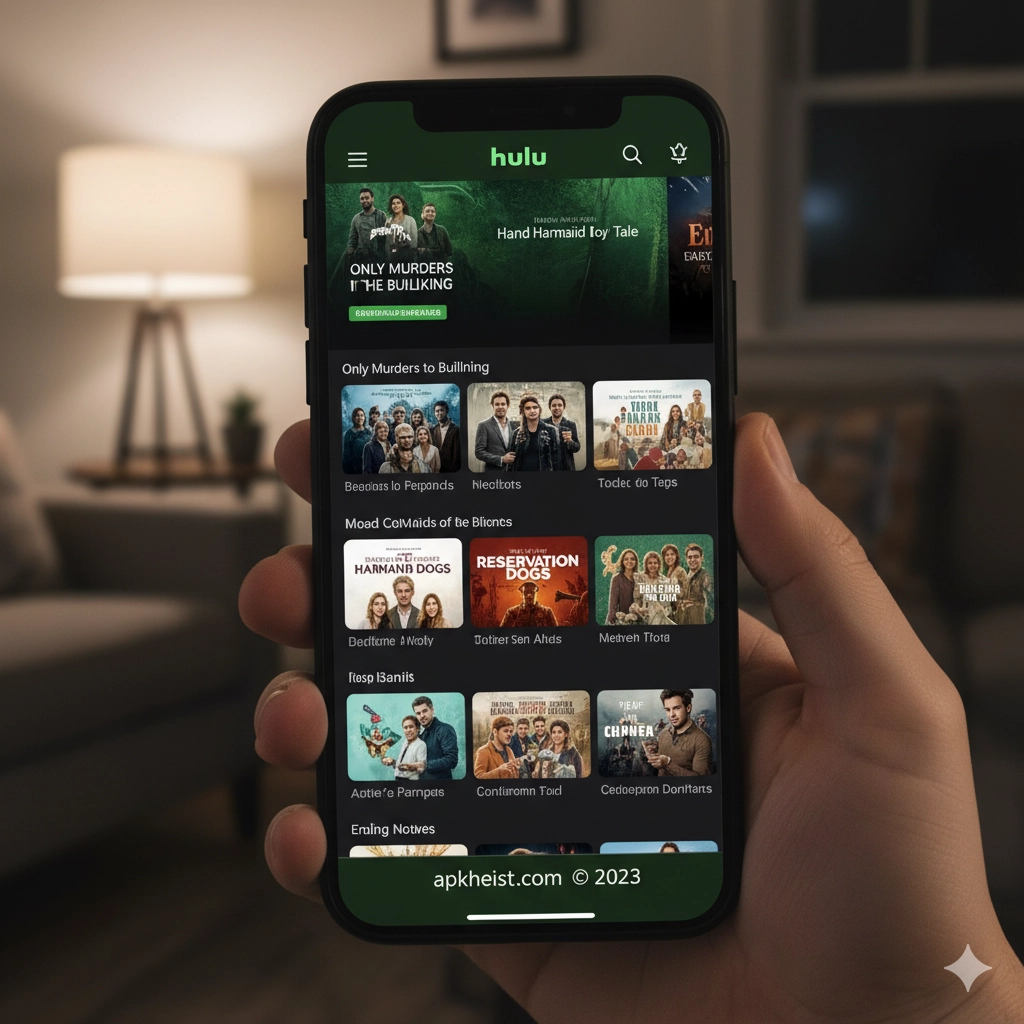
Hulu’s home screen mixes recommended rows, continue-watching, and top picks. Use the search aggressively: it finds shows, episodes, actors, and collections. Create separate profiles for household members to keep recommendations relevant. The Watchlist (or My Stuff) feature bookmarks programs for later; use the “Follow” function on series pages to receive notifications for new episodes. On mobile devices, the app offers gesture controls and quick playback scrubbing.
For context on discovery patterns and editorial picks in other apps, check this overview: What Makes the Cotomo (コトモ:音声会
3. Downloading & Offline Viewing
Hulu allows downloads on mobile for many on-demand titles if you are on supported plans. Use downloads for travel or low-connectivity scenarios: pick quality (standard, high) to balance storage vs. picture clarity. Manage downloads from the app’s Downloads section — delete watched episodes to free space. Note that not all content is downloadable due to licensing restrictions, and downloaded items usually have an expiration window that the app will show.
See also a practical guide to media playback and performance considerations: SSME - 8K Live Wallpaper App: Elevate
4. Hulu + Live TV Explained
Hulu + Live TV bundles live local channels, sports networks, and cable channels with cloud DVR and on-demand access. Key decisions: DVR storage size, number of simultaneous streams, and add-ons (premium channels). Cloud DVR makes it practical to record live events for later; the interface lets you set series recordings and manage conflicts. If you frequently watch live sports or news, the Live TV tier may be worth the premium.
For broader streaming product comparisons and channel strategies, this article offers adjacent insights: Is the ICI TOU.TV App the Best Way to
5. Profiles, Parental Controls & Kids Mode
Create profiles for each household member to personalize recommendations and watch history. Use Kids profiles to lock content to age-appropriate shows and disable in-app purchases. Parental controls are accessible via account settings where you can set maturity ratings and PIN protection. For households juggling screen time, combine profiles with the Watch History and My Stuff features to maintain separate queues.
Related resource about app categories and audience targeting: LaoApp ລາວແອັບ — The Essential Guide
6. Audio, Subtitles & Accessibility
Hulu supports multiple audio tracks, closed captions, and audio description for many titles. Toggle captions and language options from the player controls. For accessibility, the app adheres to common platform standards (screen-reader compatibility, keyboard navigation on desktop, and voice control on some devices). Make it a practice to set default captions and audio preferences in your profile to avoid repeated adjustments.
If you’re optimizing media apps for different devices, you may find this technical guide helpful: Renovation Day: House Makeover Game

7. Troubleshooting Common Problems
Playback issues usually stem from network conditions or outdated app versions. Steps: restart the device, update the app, check network speed, sign out/in, and clear cache or reinstall if needed. For account issues, verify billing info and active subscription status. If Live TV channels fail, confirm market availability and channel carriage. When contacting support, include device model, app version, and a timestamp of the failure for faster resolution.
For user experience tips and peripheral app comparisons, see this entertainment tools roundup: Tools Entertainment
FAQ 1: Which Hulu plan should I choose?
Choose based on your viewing habits: if you only want on-demand shows and occasional originals, the basic ad-supported plan is cost-effective. If you prefer no ads, upgrade to ad-free. If you need live channels and sports, consider Hulu + Live TV. Evaluate simultaneous streams and DVR needs before committing.
FAQ 2: Can I download Hulu shows to watch offline?
Yes — many on-demand titles are downloadable on mobile devices when your plan and content licensing allow it. Use the Downloads tab to manage offline content and choose quality to optimize storage.
FAQ 3: How many devices can stream Hulu at once?
Simultaneous stream limits depend on your subscription. Basic Hulu plans typically allow streaming on two devices concurrently; Hulu + Live TV and certain add-on packages may allow more or offer an upgrade for additional streams. Check your account plan details for exact limits.
FAQ 4: Why won’t Hulu play on my smart TV?
Common causes: outdated app, blocked network ports, firmware incompatibility, or account issues. Troubleshoot by updating the app and TV firmware, restarting the TV and router, and ensuring your account is active. If the problem persists, reinstall the app or consult device-specific support documentation.
FAQ 5: Does Hulu support 4K and HDR?
Hulu offers 4K/HDR for a limited set of titles and on supported devices. Availability depends on content licensing and your device’s capabilities. Check the title’s details page to confirm format availability.
FAQ 6: How do I cancel or change my Hulu subscription?
Manage subscriptions from your account settings on the web or through the app (depending on your signup method). You can change plans, add premium channels, or cancel billing. If you subscribed through a third party (app store or cable provider), you may need to manage billing via that provider.
FAQ 7: How secure is my Hulu account?
Hulu uses industry-standard account protections. For better security, enable a strong password, avoid password reuse, and monitor active devices in your account settings. If you suspect unauthorized access, change your password and sign out of all devices immediately.
AVATARA Game: An Immersive Action SimpleMMO (MMORPG - PVP - RPG)