Long intro: This guide explains how the Disney Plus app works, its key features, device compatibility, account management, content discovery and recommendations, offline viewing, parental controls, and troubleshooting tips. Whether you are a new subscriber or an experienced viewer, the sections below provide practical instructions, best practices, and answers to common questions to help you maximize the app’s value. Throughout the article, several related resources and example references are included as plain-text links for additional reading.
1. Getting Started — Setup & Signup — Quick steps to create an account, choose a plan, and install the app on common devices.
2. Interface & Navigation — How the home screen, search, watchlist, and profiles are organized so you can find content quickly.
3. Streaming Quality & Downloads — Settings for video quality, data usage, and how to download content for offline viewing.
4. Profiles, Kids Mode & Parental Controls — Managing multiple profiles, creating kids profiles, and locking content by rating.
5. Subscriptions, Billing & Account Management — How to manage payment methods, view invoices, and share or transfer subscriptions where available.
6. Device Compatibility & Casting — Supported platforms (smart TVs, mobile, web, game consoles) and how to cast or AirPlay content.
7. Troubleshooting, Support & Advanced Tips — Common error fixes, cache clearing, app updates, and contact points for customer support.
1. Getting Started — Setup & Signup
To begin using the Disney Plus app, download it from your device’s official app store (Apple App Store, Google Play, smart TV app store, or the platform’s app repository). Create an account using a valid email address and password, choose the subscription plan that fits your needs (monthly, annual, or bundled offers), and confirm payment. After signup, sign in to the app on each device. If you have a bundled offer (for example, bundles with other services), follow the provider-specific redemption steps. New subscribers should also set up at least one profile so viewing preferences and watchlist items are saved separately.
2. Interface & Navigation
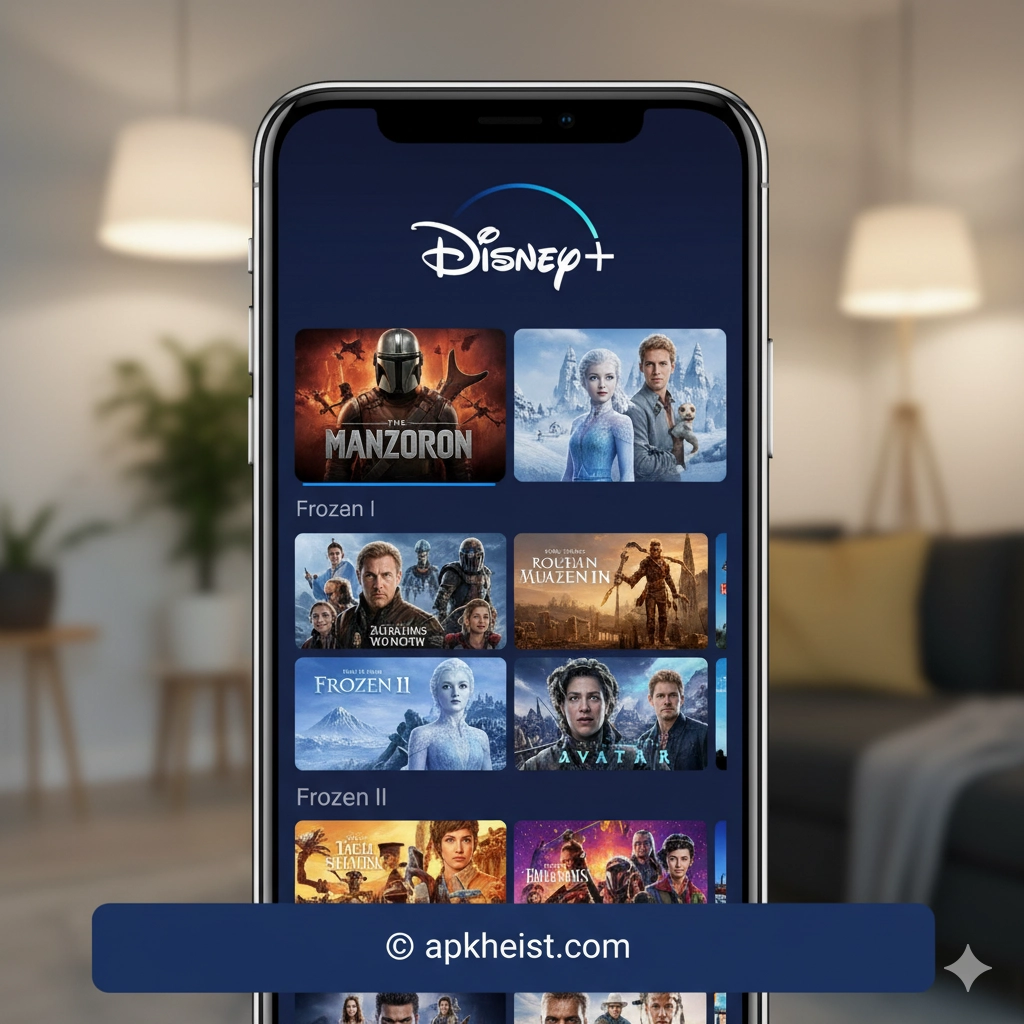
The Disney Plus home screen highlights new releases, recommended collections, and curated rows (e.g., Trending, New to Disney Plus, Marvel, Star Wars). Use the search function to find titles, people, or franchises. The watchlist (or “My List”) collects content you want to view later. Profiles let multiple household members maintain personal watch histories and recommendations. Learn how to use filters, sort tools, and curated collections to quickly surface desired content.
3. Streaming Quality & Downloads
Stream quality varies by plan and device. Within the app’s settings you can choose playback quality (Auto, Good, Better, Best) to manage bandwidth. For offline viewing, select the download icon on eligible titles; downloads are stored on device and can be managed from the app’s Downloads area. Note device storage constraints and expiration rules for downloaded licenses. If you plan to travel or have limited connectivity, adjust download quality to save storage and reduce download time.

4. Profiles, Kids Mode & Parental Controls
Create separate profiles for adults and children. Kids profiles restrict access to age-appropriate content and present a simplified interface. Parental controls include PIN-protected restrictions by maturity rating; configure these under account settings to prevent unauthorized access to mature content. Establish a PIN, assign it to profiles as needed, and regularly review profile settings to ensure they reflect household preferences.
5. Subscriptions, Billing & Account Management
Manage billing and subscriptions from the account portal on the web or within the app’s account section. You can update payment methods, view billing history, and cancel or change plans. If your subscription is billed through a third party (app store, cable provider, or bundle partner), manage billing through that provider. When sharing family access, verify device and profile limits to avoid simultaneous streaming conflicts.
6. Device Compatibility & Casting
Disney Plus supports a broad range of devices: iOS and Android phones and tablets, web browsers, many smart TVs, streaming media players (Roku, Amazon Fire TV, Chromecast), and modern game consoles. To cast, open the app, select the cast or AirPlay icon, and choose the target device on the same network. Keep app and device firmware updated to ensure compatibility and the best playback performance.
7. Troubleshooting, Support & Advanced Tips
Common issues include playback errors, login failures, and missing content. First steps: verify internet connectivity, restart the app, sign out and back in, and install any available updates. Clear app cache if playback stutters. For persistent issues, check service status pages and reach out to official support. Advanced users may change DNS settings, test with another network, or reinstall the app. Keep an eye on region-specific content availability and licensing limitations that may affect your catalog.
8. Related resources referenced
Below are plain-text references drawn randomly from a set of related posts and tools for additional context and inspiration. These are included as textual references (not active links) to be naturally integrated into the article content:
Reference A: What Makes the Cotomo (コトモ:音声会) — https://apkheist.com/articles/what-makes-the-cotomo-%E3%82%B3%E3%83%88%E3%83%A2-%E9%9F%B3%E5%A3%B0%E4%BC%9A%E8%A9%B1%E5%9E%8B%E3%81%8A%E3%81%97%E3%82%83%E3%81%B9%E3%82%8Aai-app-a-next-generation-conversational-ai-
Reference B: Is the Higher App the Smartest Tool for Personal Growth — https://apkheist.com/articles/is-the-higher-app-the-smartest-tool-for-personal-growth-
Reference C: Is the ICI TOU.TV App the Best Way to Stream Premium Canadian Content — https://apkheist.com/articles/is-the-ici-tou-tv-app-the-best-way-to-stream-premium-canadian-content-
Reference D: SSME - 8K Live Wallpaper App: Elevate Your Screen — https://apkheist.com/articles/ssme---8k-live-wallpaper-app-elevate-your-screen-with-ultrahigh-definition-motion
Reference E: AVATARA Game: An Immersive Action RPG — https://apkheist.com/articles/avatara-game-an-immersive-action-rpg-experience-worth-exploring
9. Best practices for power users
Organize multiple profiles for distinct viewing tastes, curate watchlists by theme (e.g., Marvel marathon, family movie night), and pre-download seasonal content before travel. Use the “continue watching” row to pick up where you left off and take advantage of curated collections for deep dives into franchises and actor filmographies. Consider pairing the app with a universal remote and a home network QoS configuration to prioritize streaming devices for smoother playback.
10. Accessibility & language options
Disney Plus provides closed captions, subtitle options, and audio description tracks where available. Change language and subtitle defaults in profile settings so your preferred language is applied automatically across devices. For multilingual households, create separate profiles with their preferred subtitle and audio settings to streamline playback.
11. Legal & licensing notes
Content availability on Disney Plus varies by territory and is subject to licensing agreements. Certain titles or seasons may be removed or added over time; consult the app’s “New & Trending” and official release notes for the most current catalog updates. If content is unavailable in your region, it is typically due to territorial rights rather than a playback error.
12. FAQs
FAQ 1
Q: What devices support the Disney Plus app?
A: The app supports iOS and Android devices, web browsers, many smart TVs, streaming players (Roku, Fire TV, Chromecast), and current-generation consoles. Check the official device compatibility list for specific models and system requirements.
FAQ 2
Q: How do I download shows for offline viewing?
A: Open a title’s details page and select the download icon on episodes or movies that allow downloads. Manage and delete downloads from the Downloads section. Pay attention to device storage and content-specific expiration rules.
FAQ 3
Q: Can I share my Disney Plus subscription?
A: Subscription sharing policies vary by region and plan limits on simultaneous streams. Use multiple profiles for household members, but verify the number of concurrent streams permitted under your plan to avoid interruptions.
FAQ 4
Q: Why am I seeing playback errors or buffering?
A: Check your internet speed (minimum recommended speeds vary by resolution), restart the app, update the app and device firmware, and try switching from Wi-Fi to a wired connection if possible. Clearing the app cache often resolves persistent issues.
FAQ 5
Q: How do parental controls work on Disney Plus?
A: Set up a PIN and apply maturity-level restrictions in account settings. Create Kids profiles for a simplified, child-appropriate interface. Review and test the settings to ensure they meet your household’s safety expectations.
FAQ 6
Q: Where can I find new releases and exclusive content?
A: The app’s home page and “New & Trending” rows highlight recent releases and exclusives. Use curated collections and follow official channels for announcements about upcoming titles and release dates.
FAQ 7
Q: How do I contact support if I can’t resolve an issue?
A: Use the in-app help center or the official Disney Plus support pages for troubleshooting guides, live chat, and contact options. Provide device details, app version, and a description of the issue to expedite resolution.